The case for tag-based tiling window managers
In the world of tiling window managers, workspaces reign supreme. But is there a better option?

Feb 21, 2026
NOTE:
This post comes purely from my own experiences as a user of tag-based tiling window managers. There are a LOT of incredible workspace-based window managers as well, and just because I am saying that tag-based window managers have benefits over workspace-based ones, that does not mean that workspace-based window managers are bad.
For the vast majority of computer users in the world, the title of this piece probably makes absolutely no sense. And truthfully, I wouldn't blame them for not knowing! Tiling window managers (or tiling window compositors, but we'll just stick to "tiling window managers" or "TWMs" for the sake of our sanity) still feel like a well-kept secret, especially outside of Linux-heavy circles. You see, Apple and Microsoft have mostly stuck with floating-window models, even as they've added a few tiling-like conveniences.
I could spend all day espousing the wonders of tiling window managers as opposed to floating window managers, but that's not why we're here. We're here specifically to talk about an even smaller contingent of tiling window managers, tag-based tiling window managers, and why they are often the more flexible option for many people.
But first, we probably should take a step back and talk about tiling window managers more broadly.
What is a tiling window manager?
TL;DR - a tiling window manager arranges your application windows automatically as defined by a specific algorithm, typicially in such a way that they do not overlap. Interested? Read on!
Without diverting too much from the original point of this piece, we need to find some common footing with regard to what a tiling window manager actually is. To define a TWM, we need to define all the composite parts of the name.
- Tiling: an arrangement that ensures no overlap between the items being placed. For example, consider flooring or backsplash tiles–the idea is for each tile to be adjacent to the others, not on top of them.
- Window: any application (or application-adjacent, like a popup window) that appears on the screen. For example, each Chrome instance you have open would be its own window.
- Desktop Environment: the visible part of your operating system.
- Window Manager: the part of your desktop environment which is responsible for keeping track of each window's state, position, and other important metadata.
In general, there are two main types of window managers: floating and tiling.
Floating window managers are by far the most common, since Windows and macOS still default to this model. Floating window managers allow for windows to overlap and sit on top of one another, keeping track of position as well as the stacking order. These window managers generally allow you to pick up any window you like and put it anywhere else on the desktop without any restrictions.
Tiling window managers, on the other hand, do not allow windows to stack on top of one another (unless specifically directed to for a given window). By default, they use one of many algorithms and/or user input to determine what should happen to the existing windows when a new one is opened on screen. The idea is to keep all of your monitor's screen real estate in use without manually fiddling with your open windows.
Within the realm of tiling window managers, there are two main types: workspace-based and tag-based managers.
How do workspaces work in a tiling window manager?
In order to talk about tag-based tiling window managers, it's important that we come to a shared understanding of how the common alternative, the workspace-based tiling window manager works.
Workspace-based tiling window managers are a common type of TWM, and they work very similarly to workspace-based floating window managers. If you come from a Windows or macOS background, or if you come from other Linux desktop environments like GNOME, you're likely already very familiar with how workspaces work.
In workspace-based window managers (floating or tiling), you log in and land on a single workspace. Usually this is workspace #1. On this workspace, you can put any number of discrete application windows. In a floating window manager, you can position them wherever you want, but in a tiling window manager, they are typically laid out according to some layout pattern.
From there, if you want to separate out one or more windows from this workspace, you can move to another workspace and begin adding more unique application windows to this new workspace.
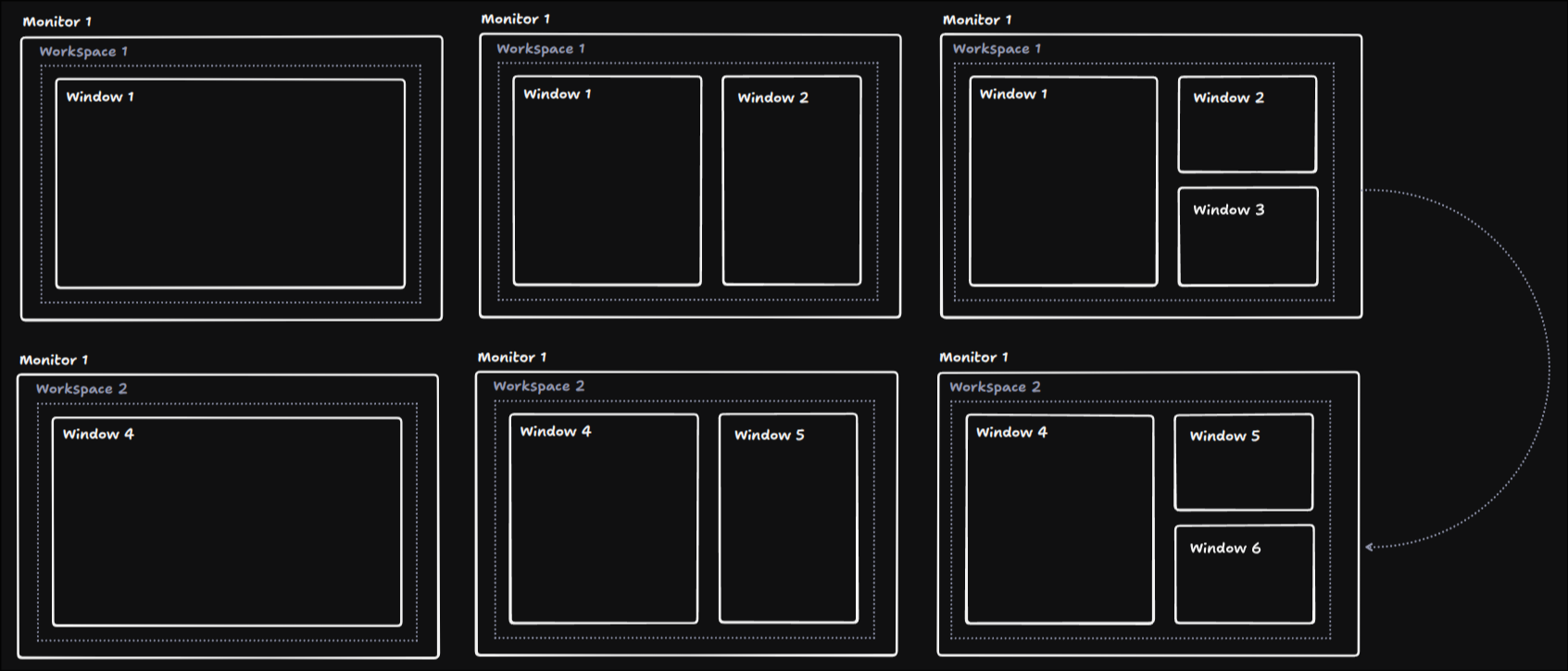
The word "unique" is doing a lot of heavy lifting there, so let's dig into that a bit more.
In a workspace-based window manager, you have the ability to perform three main actions with regard to application windows:
- Open a unique application window on a given workspace
- Move an application window to another workspace
- Close a specific application window on a given workspace
Actions 1 and 3 are fairly obvious and self-explanatory, but number 2 is worth digging into here. Admittedly, the idea of being able to pick a window and move it to another workspace probably seems like common sense to most of us who have used modern computer operating systems. However, there's one key constraint here: every application window belongs to exactly one workspace.
To illustrate, we could generate a very simple entity relationship diagram:
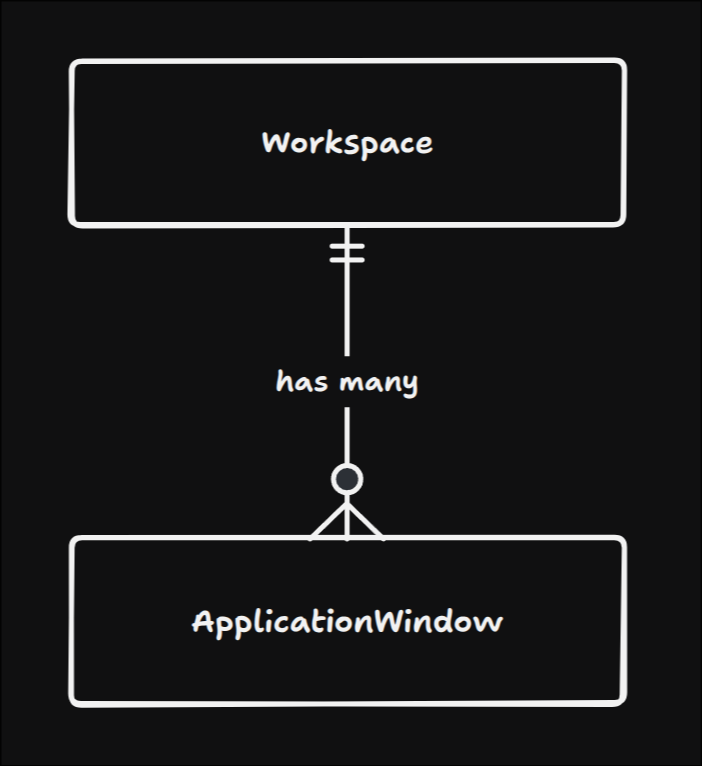
For the Laravel (or other MVC framework) nerds in the room, this would look an awful lot like an ApplicationWindow having a BelongsTo relationship with a Workspace.
<?php

class ApplicationWindow
{
    public function workspace(): BelongsTo
    {
      return $this->belongsTo(Workspace::class);
    }
}

class Workspace
{
    public function applicationWindows(): HasMany
    {
      return $this->hasMany(ApplicationWindow::class);
    }
}
This simplicity is, frankly, beautiful! Only having to reason about which singular workspace an application window belongs to makes for an easier time for users to understand what is going on with how their windows are arranged.
However, especially for the computer-literate, I would argue that there is a better, more useful option.
Introducing the tag-based window manager
I mean, what else did you really think I was going to say here?
I'd like to introduce you to the concept of the tag-based window manager. Specifically, in our case, we'll talk about tiling tag-based window managers, though the same idea applies to floating window managers as well.
What is "tagging"?
In software development, "tagging" is the process of attaching a keyword or other metadata (the tag) to a specific resource or data point. Tagging is a very powerful tool because, when implemented well, it gives users the opportunity to confidently sort items into one or more representative buckets.
How do tags work in a tiling window manager?
To start, let's talk about the small change that makes a massive difference when comparing the feature sets and mental models of workspace-based and tag-based window managers.
When we talked about workspace-based window managers, the recurring theme was that an application window belongs to a workspace. At any time, you can look at a workspace and see the windows it owns. Now, tag-based window managers are very similar, with the real difference coming in how this connection is perceived. Instead of a tag declaring sole ownership over a window, application windows can be assigned any tag (and any number of tags).
This small shift in perspective is the key behind what makes tag-based window managers so powerful. To explain, let's cover three main ideas:
- Using tags similarly to workspaces
- Tags and their relation to monitors
- Tags and their relation to application windows
Can I use tags as if they were workspaces?
Yes.
One of the great benefits to a tag-based window manager is that, if you like all of the simple power that workspace-based window managers give, there is no reason why you can't use that same workflow in a tag-based window manager.
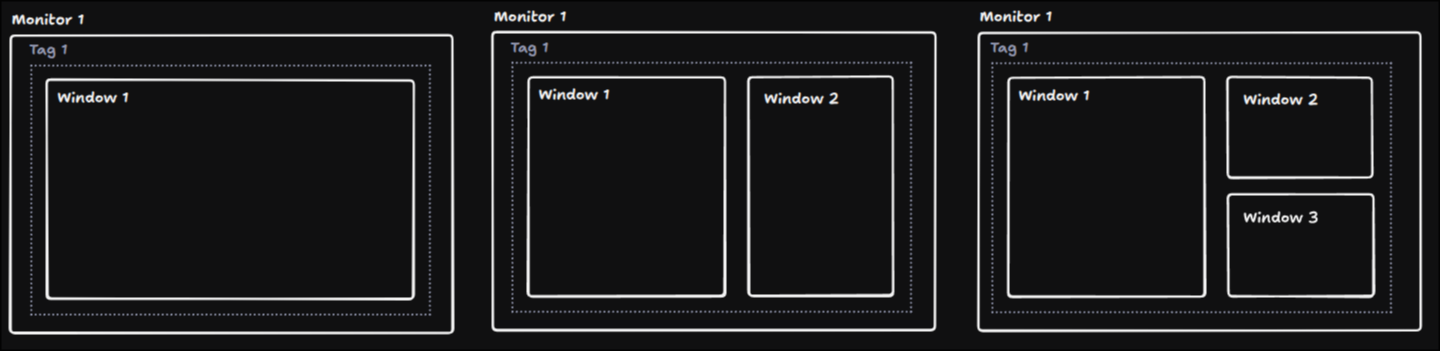
Want your browser window to appear on tag 1? Tag that window with the "1" tag. Want your terminal and code editor to appear on tag 2? Tag both of those windows with the "2" tag. Want to look at your editor and browser side by side, now? Remove tag 2 and add tag 1 on the editor window! Before you know it, you've recreated your entire workflow from a workspace-based window manager. And, to be frank, that's how most folks (myself included) use tag-based window managers 85-90% of the time.
This, however, is just the tip of the iceberg. To go deeper, let's dig into the relationship between monitor and tags.
Tags and their monitors
Earlier, we established that workspaces have a strict relationship with monitors: one workspace is displayed at a time on a given monitor, and you can switch between any number of workspaces on that monitor. Again, workspaces are like containers - you can put any number of application windows within them, but only one can be opened at a time.
Tags don't have this constraint.
Up until this point, we have operated under an assumption that, when we want to view the window(s) tagged with a given tag, we switch to show that tag on the monitor. We've assumed that we can look at tag "1" and see a browser, then switch to tag "2" and see a code editor. This isn't entirely incorrect--when we show tag "1" on the screen, we will see the browser window that is tagged with "1". However, that's not where this ends.
Let's continue on with our example of a browser being tagged with "1" and our code editor being tagged with "2". Most of the time, we flip back and forth between tags "1" and "2" to look up documentation in our browser, go back into our code editor and make changes, then go back to the browser to view those changes, and so on and so forth. But what do we do if we want to view those application windows side by side?
In a workspace-based window manager, we'd pick one of the windows (the code editor) and move it to the workspace where the browser is located: workspace 1. Then we would show workspace 1 on the monitor, see both windows, do our work, and then move the code editor back to workspace 2.
However, in a tag-based window manager, there's nothing stopping us from telling the window manager to show both tags "1" and "2" at the same time. In fact, we can show any number of tags on a monitor at one time. Then, when we're ready to only see a single tag's windows again, we can just hide any tags we no longer want to see.
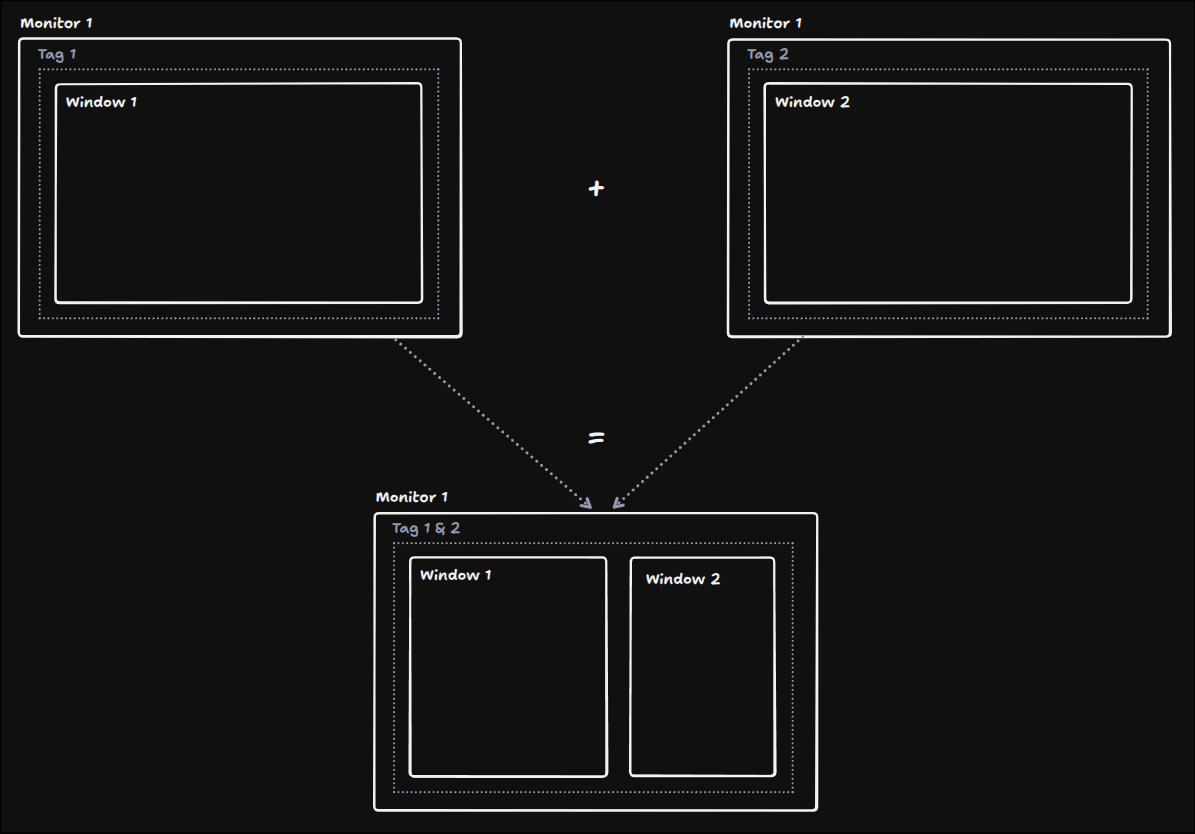
This workflow is exceptionally powerful due to its flexibility. At any time, you, the user, are in complete control over which tags are showing on your screen.
Tags and their applications
But imagine this: you're a front-end web developer implementing a design your teammate created in Figma. You need to bounce between Chrome, VS Code, Figma, and Slack. What you really want is for Figma to stay beside whichever app you're using at the moment - beside Chrome for visual checks, beside your editor while implementing, and beside Slack when you need to ask your designer a question.
With what we know so far, we have a few options:
- You can just tough it out and put each window on its own tag and bounce back and forth. Not terrible, but it doesn't give you the side-by-side viewing experience that you're looking for.
- You can pick the application you use most alongside Figma and put those two on the same tag, and leave the others. For example, if you most often look at Figma while you're implementing, then you could put your editor and Figma on the same tag while leaving your browser and Slack on their own tags. This is definitely a better option, but you're still jumping around when you're using the browser or Slack.
- You can constantly move Figma around to whatever tag you're currently going to. It's a bit tedious, but you can just move the Figma window to whatever tag you're currently swapping to. This solves the issue of needing to put Figma beside multiple other applications, but it can be a bit of a slow annoyance to remember to move Figma every time you change tags.
You may have already guessed, but one of the coolest features of a tag-based window manager gives us a better way.
In a tag-based window manager, in a similar way to how multiple application windows can be assigned the same tag (i.e. your browser and Figma being both assigned to tag 1), each window can be given many tags.
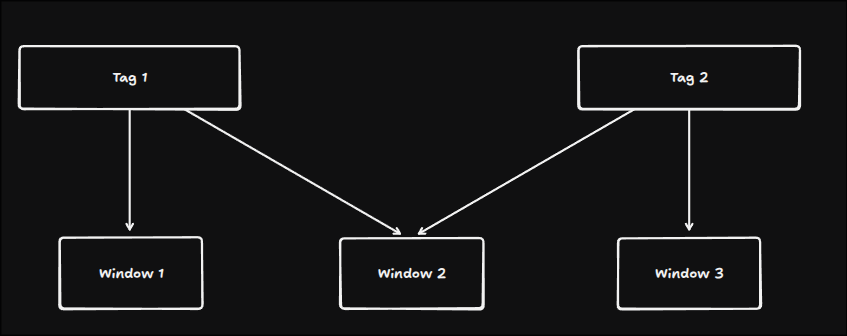
You may see where we're going here, but in practice, what does this look like?
Let's go back to our example with Figma. In an ideal world, the right way to solve this would be to allow Figma to live alongside all three of our other application windows: the browser, editor, and Slack. With tags, we can!
- We can assign the browser window and Figma a tag of "1".
- We can assign the editor window and Figma a tag of "2".
- We can assign Slack and Figma a tag of "3".
So Figma is now tagged with "1", "2", and "3". In practice, this now means that Figma will appear on all three of those tags, alongside the browser on tag 1, your editor on tag 2, and Slack on tag 3.
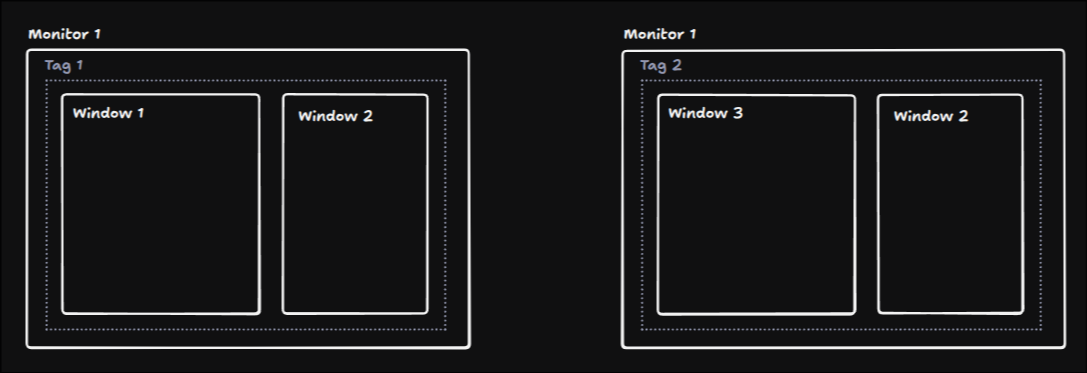
This is one of the least obvious but most useful powers of a tag-based window manager. Unlimited freedom to place your windows exactly where you want them to make your workflow the most productive it can be.
Recap
If you take anything from this article, let it be this: workspace-based window managers are fantastic pieces of software, but I would argue that with very little additional overhead, you can keep all the features you love about workspace-based window managers and gain much more.
Tag-based window managers tap into what makes Linux great; they allow you to do what you want when it comes to your desktop workflow. If you want to constrain a single monitor to have a single tag which has unique windows, you can! If you want to show multiple tags on a monitor, you can! If you want to share a given application window across multiple tags, you absolutely can!
Trying a tag-based window manager
There are a handful of great options when it comes to tag-based window managers. However, most of them are just window managers, not full desktop environments, so you may need to roll up your sleeves a little bit to get them working.
Tip: Some people consider this cheating, but you can always install your window manager of choice and couple it with something like Noctalia Shell to get much of the functionality of a full desktop environment without having to set it up yourself!
Now, if you're still with me, here are a few recommendations:
- MangoWC - Mango is my daily driver and it is solid as a rock. It's lightweight, but packed with lots of nice features that make using it an enjoyable experience
- dwl - dwl is a Wayland port of dwm. Its claim to fame is that all configuration is done by editing the C source code, which, while probably not for true beginners, if you follow the instructions, it's not bad at all. It is an incredibly lightweight manager with lots of customization opportunities if you're willing to get your hands dirty
- AwesomeWM - Awesome was my previous daily driver before I switched over to Wayland (if you don't know what that means, don't worry about it - just pick a Wayland compositor), and it's, well, awesome! Very easy to use and configurable in Lua, so if you're already a Wezterm or Neovim user, you'll feel right at home here.
Shameless plug: if you're looking for a plug-and-play example of MangoWC, then follow along with my personal dotfiles here! I stream weekly, and for the last few months, we have been working tirelessly on getting these dotfiles into a place where anyone can install them on top of CachyOS and have a full-featured Linux desktop. They are definitely still in an alpha phase at the time of writing, but if you're interested in seeing how Mango works, it's a great option. And if you feel so inclined, PRs are always welcome!
So what do you think? Has the idea of tag-based window managers piqued your interest? Drop me a line on Twitter or Bluesky and let me know what tag-based window manager you use or want to learn to use!